
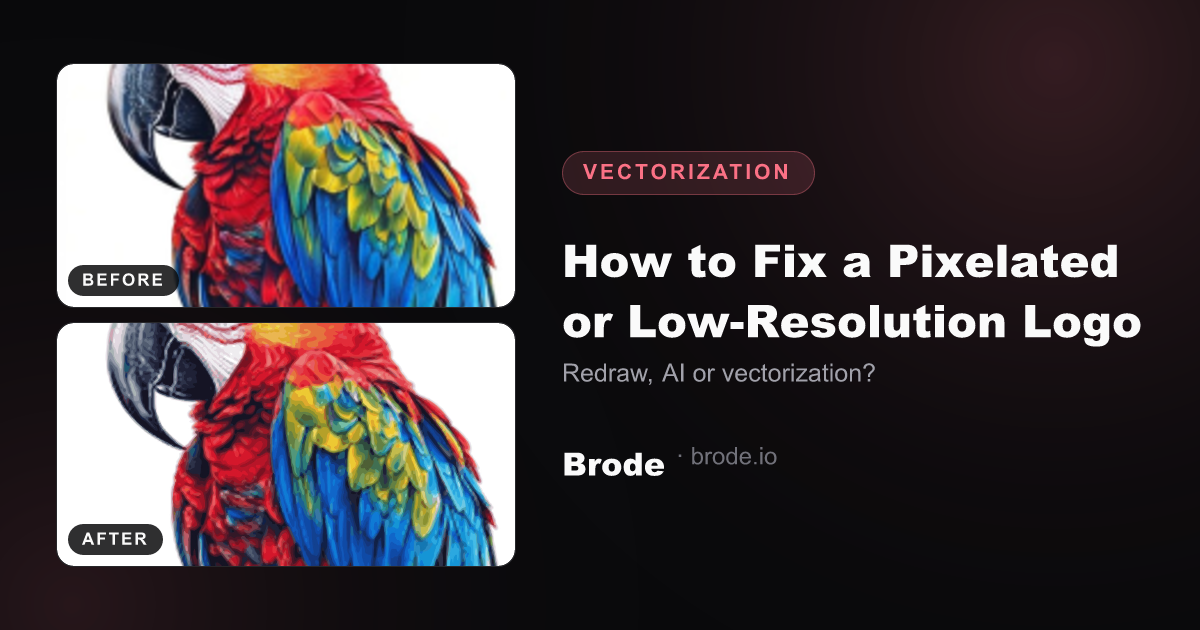
Classic situation: the company logo only survives as a 250×250 px PNG pulled from an old website, and the printer wants a vector file. Here are the real options, worst to best.
What doesn't work
- Upscaling the PNG ("resize to 3000 px"): pixels become big blurry squares. No software creates information by interpolating.
- "Magic enlarger" websites: they smooth and invent detail; it looks sharp small-scale but is still fake, with soft edges in print.
- Blur + sharpen filtering: you're trading pixelation for blur.
AI upscaling: helpful, but not enough
AI upscaling models (waifu2x, Real-ESRGAN and commercial equivalents) genuinely reconstruct detail and work well on photos. On a logo, they clean up the pixel stair-step — but produce an IMAGE, not a vector: for large-format printing or cutting, you still lack the geometric precision of real curves. It's a good first step when the source is very small (< 400 px), provided you vectorize afterwards.
The real fix: vectorization
A logo is by nature a vector drawing: flat surfaces, solid colors, regular geometry. Vectorization rebuilds those curves from the image — and once in SVG, the file is sharp at any scale, forever. Points to watch:
- Start from the BEST available source (the designer's original PNG beats a screenshot).
- Cleanly reduce the color count before tracing — that's what removes smoothing speckles.
- Preserve right angles and smooth curves (circles must stay circular).
- Check counters: the inside of an "e" or "o" must be a true hole, not a gray blob.
And if the logo is really too small?
Below 150–200 px, no automatic reconstruction is reliable: it needs redrawing. A designer will rebuild the logo in Illustrator in 1–3 hours — often what the lost original file was anyway. Between 300 px and beyond, quality automatic vectorization gives a usable result immediately.
Brode handles the whole chain: logo-tuned cleanup presets, vectorization to SVG/PDF/EPS/DXF, and even a preliminary upscale step for very small sources. Try it free on your logo — the visual before/after check takes a minute.